
Have you noticed why you can't copy pictures from other websites or the Save As.. option is not available anymore? Isn't it irritating that you love that particular picture yet too bad you cannot save it on your computer or save it offline? The reason for this is due to security reasons or that particular picture is a premium picture and is for sale. Those websites are running scripts or particular program to disable the save as or copy option of right click on the mouse so as not to anyone could easily copy those images
Worry not, we will teach you how to get that particular picture. Step by step and the best thing its all free! And please, after learning this skill, please do not use it for any negative behavior of any manner.What we will teach you is doing a screen shot! Those who are technically savvy already knew this, so please bare with us for those who knew it not.
Steps:
1. Make sure the wanted image or picture is displayed on he screen of your monitor. What you see is what you get!
2. Press the (Print Screen) button, it is located on the right after the Backspace button of your keyboard.
3. Open MS Paint. or Go to Start then go to Run then Type mspaint.
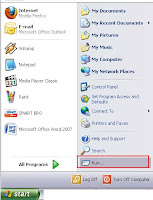
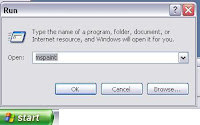
4. Once Paint is open, press CTRL+V (shortcut for paste)or go to Edit and click Paste.
5. Choose the crop button (the broken rectangle on Paint and select desired object. (ex. below shows the image you wanted to crop (the ring).
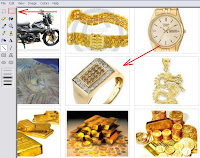
6. After you cropped the borders of the image, right click and copy/or cut
7. Open a New MS Paint application and press CTRL+V or go to edit and Paste.
8. After the image is pasted, make sure you drag the border lines on your desired boundaries of the images.
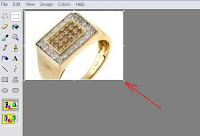
9. Go to File , Save As..Then Choose the JPEG File type as most of the picture files are jpeg or .jpg files since .jpg files have much more smaller file size than .bmp,.gif or other file types.
Hope this helps..
Please comment below for any inputs for other readers.


 First, you need to do is download the Youtube downloader software. We have provided a link below where you can download it. Next, is to install the software on your computer, after installing the software, open that software.


